
An app leaks memory when it allocates memory and fails to release it. Memory leaks afflict all operating systems, including Chrome OS. Eventually performance deteriorates to such an extent that the device has to be rebooted, which for a Chromebook is mercifully quick.
Diagnostics app
Chrome OS has a built in Diagnostics app, which can be used to monitor performance. It won’t fix memory leaks, but it will tell you how much memory you have left. It will tell you when it is time to reboot, and with a little trial and error it may help you avoid practices that leak a lot of memory.
About Chrome OS
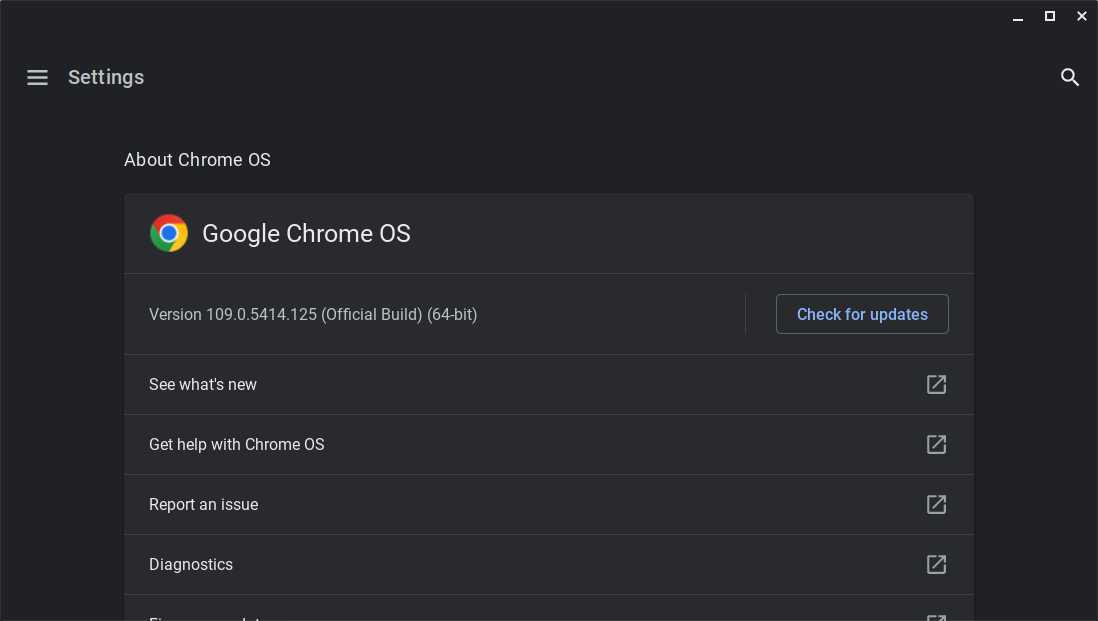
To get to the About Chrome OS section of Settings:
- At the bottom right of the screen, select the time
Settings
.
- At the bottom left of the app, select About Chrome OS.
This section is usually used to check for updates to Chrome OS. but you can also slect the Diagnostics option.
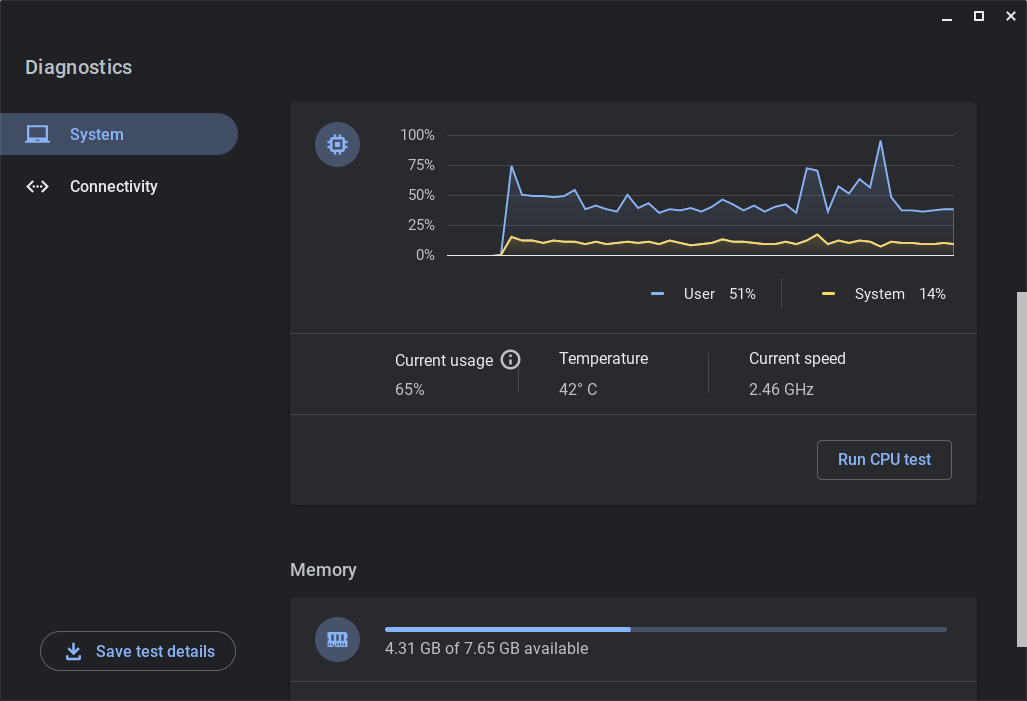
At this point you might want to pin the app to the shelf, because it does not appear in the Launcher. To use it to monitor performance, adjust the display as shown above.
Task Manager
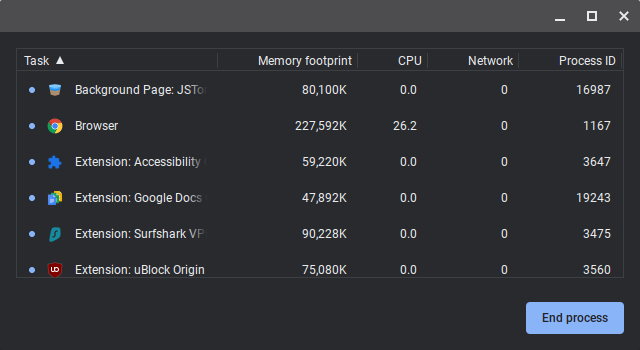
Another useful tool is the Task Manager. It tells you how much memory and CPU time is being used by each individual app, and allows you to end them. Each browser tab is listed separately, which is useful.
The Task Manager can be launched by right clicking on the title bar of any app, and selecting the Task Manager option. Alternatively, hold down the Search key (or Windows key in chromeOS Flex) and press Escape.